 |
| Top > Technical-notes > VNWA > How to use Create S11 C-Fgraph from VNWAs1p calculation sheet. |
|
| Top > Technical-notes > VNWA > How to use Create S11 C-Fgraph from VNWAs1p calculation sheet. |
| First, measure and extract the S11 frequency characteristic data of the
capacitor on the page below. Import the extracted data into EXCEL. ↓↓ |
| Import Capacitor's VNWA S11data into EXCEL. |
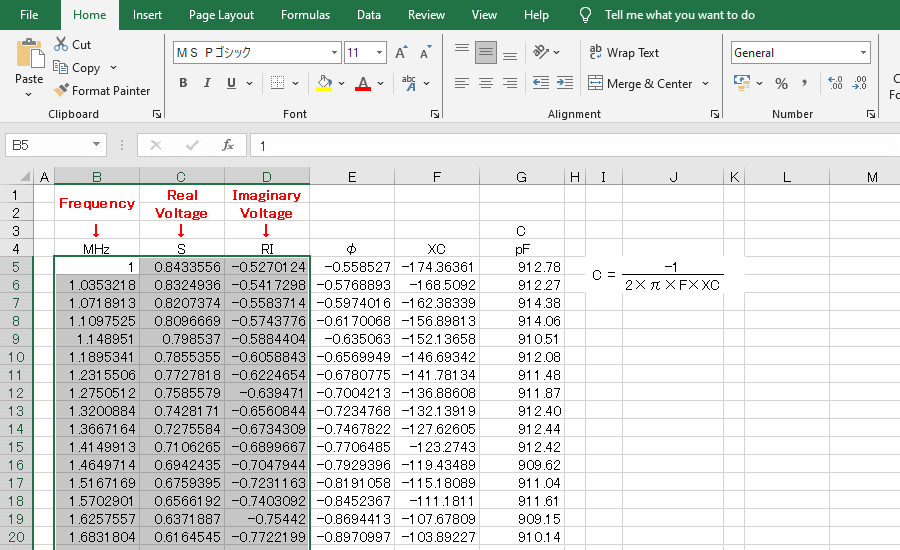
| Select and copy from Selecting the minimum to maximum frequency in columns B, C, and D. |
 |
| Paste it into the calculation sheet at the same coordinates. |
 |
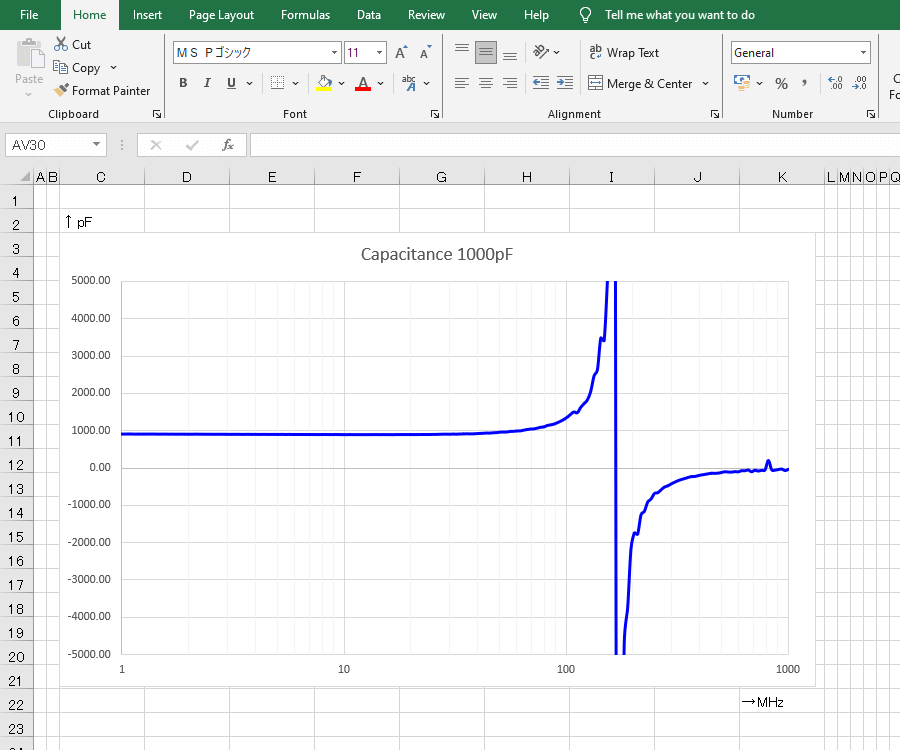
| If you check the Graph cell, you will see that the Capacitance (pF) graph are complete. |
 |
| Click here to download Create-S11CFgraph-VNWAs1p.xlsx |
 |