Top > Technical-notes > VNWA > How to use Create S11 Z-Fgraph from VNWAs1p calculation sheet.

How to use Create S11 Z-Fgraph from VNWAs1p calculation sheet.

First, measure and extract the S11 frequency characteristic data of the resistor on the page below.
Import the extracted data into EXCEL. ↓↓
Import Resistor's VNWA S11data into EXCEL.
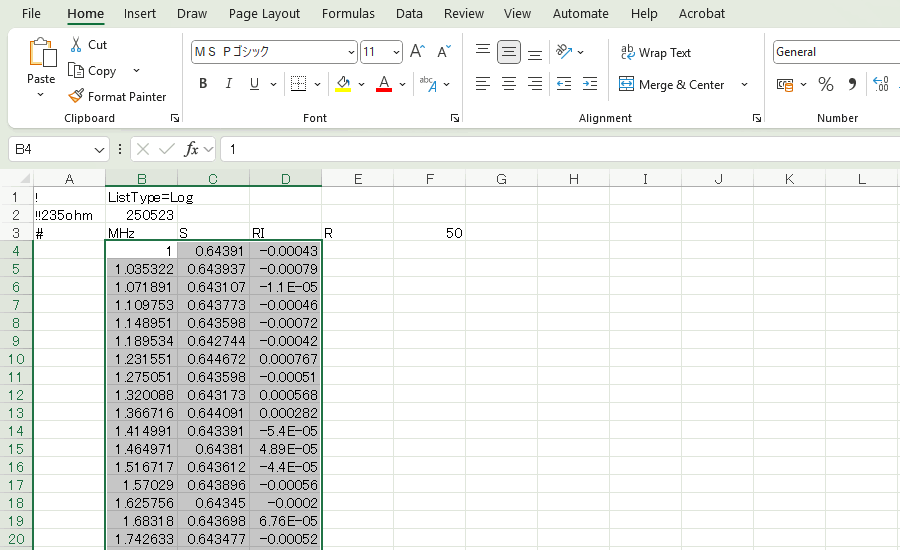
Select and copy from Selecting the minimum to maximum frequency in columns B, C, and D.
This article explains how to use the Excel spreadsheet to import resistor S11 characteristic (S1p) data saved in the Vector network analyzer (VNWA3E) DG8SAQ into Excel and immediately create frequency response graphs. This image explains how to copy data from an Excel import file.
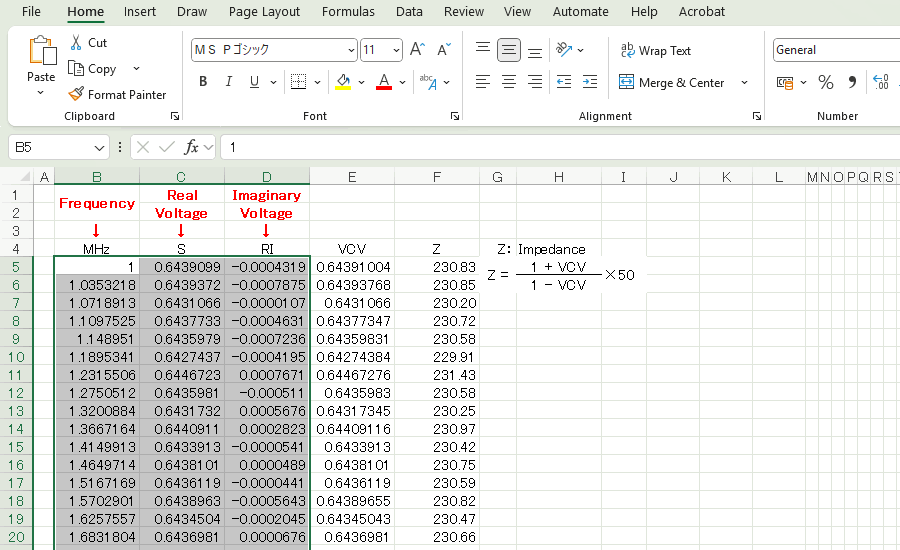
Paste it into the calculation sheet at the same coordinates.
This article explains how to import resistor S11 characteristic (S1p) data saved in the Vector network analyzer (VNWA3E) DG8SAQ into Excel and immediately create a frequency response graph. This image explains how to paste data copied from an Excel import file into an Excel spreadsheet.
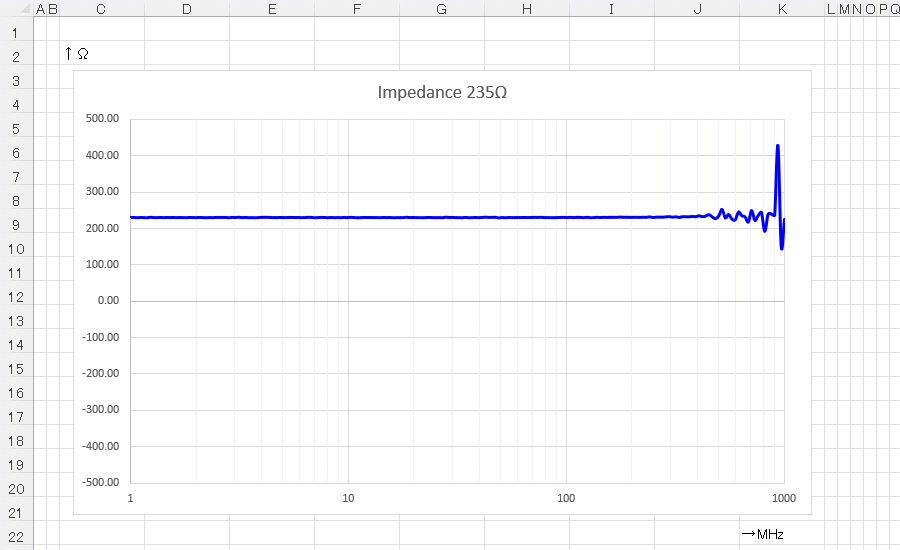
If you check the Graph cell, you will see that the impedance (Ω) graph are complete.
This article explains how to import resistor S11 characteristic (S1p) data saved with the Vector network analyzer (VNWA3E) DG8SAQ into Excel and immediately create a frequency characteristic graph. This image shows an impedance frequency characteristic graph completed using the Excel spreadsheet.
Click here to download Create-S11ZFgraph-VNWAs1p.xlsx

© SMPS Solution