Top > Technical-notes > VNWA > Displays the converted Line-Filter impedance data as a graph.

Displays the converted Line-Filter impedance data as a graph.

Import Line-Filter's VNWA data into EXCEL.
Convert Line-Filter's VNWA-s1p data to dB and impedance.
Displays the converted Line-Filter dB data as a graph.
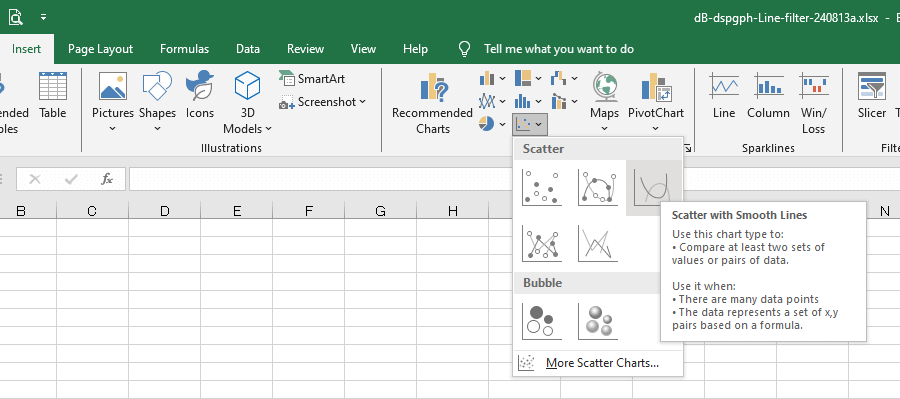
 Select the Scatter with Smooth Lines for the graph. 
The S21 of a line filter was measured using a Vector Network Analyzer (VNWA3E) DG8SAQ, and the S1p data was imported into Excel. This image explains how to create a frequency response graph from the calculated impedance data. Select the Scatter with Smooth Lines for the graph.
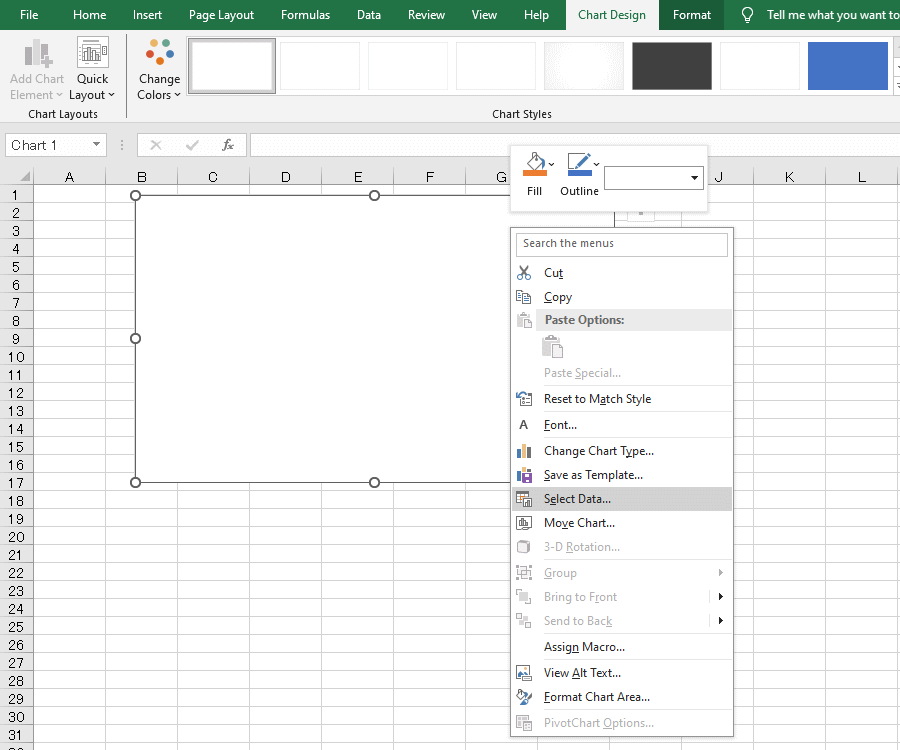
 Right-click the chart area and click Select Data.
The S21 of a line filter was measured using a Vector Network Analyzer (VNWA3E) DG8SAQ, and the S1p data was imported into Excel. This image explains how to create a frequency response graph from the calculated impedance data. Select the data to use for the graph.
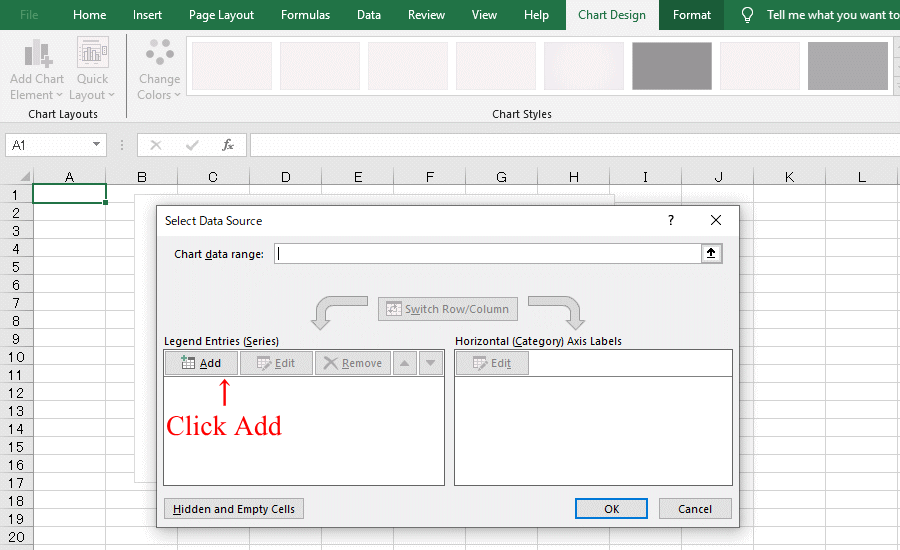
The S21 of a line filter was measured using a Vector Network Analyzer (VNWA3E) DG8SAQ, and the S1p data was imported into Excel. This image explains how to create a frequency response graph from the calculated impedance data. Select Add Data to Graph.
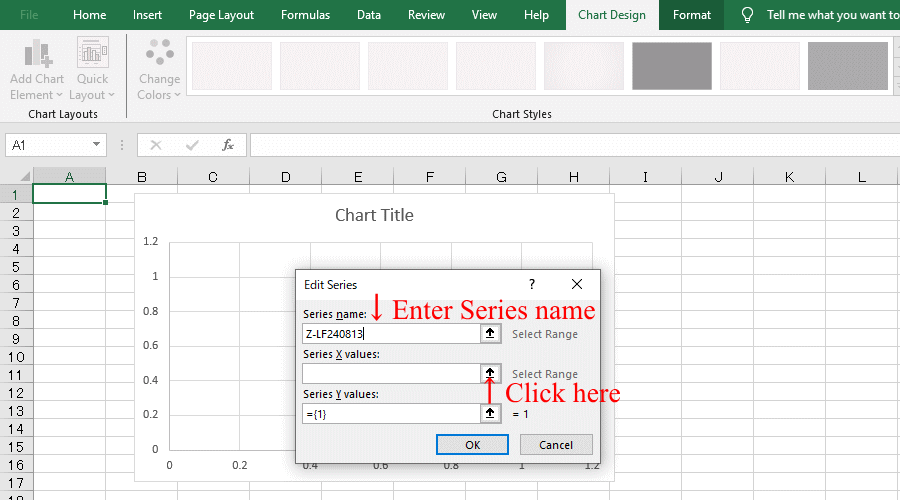
The S21 of a line filter was measured using a Vector Network Analyzer (VNWA3E) DG8SAQ, and the S1p data was imported into Excel. This image explains how to create a frequency response graph from the calculated impedance data. Enter a title for the graph.
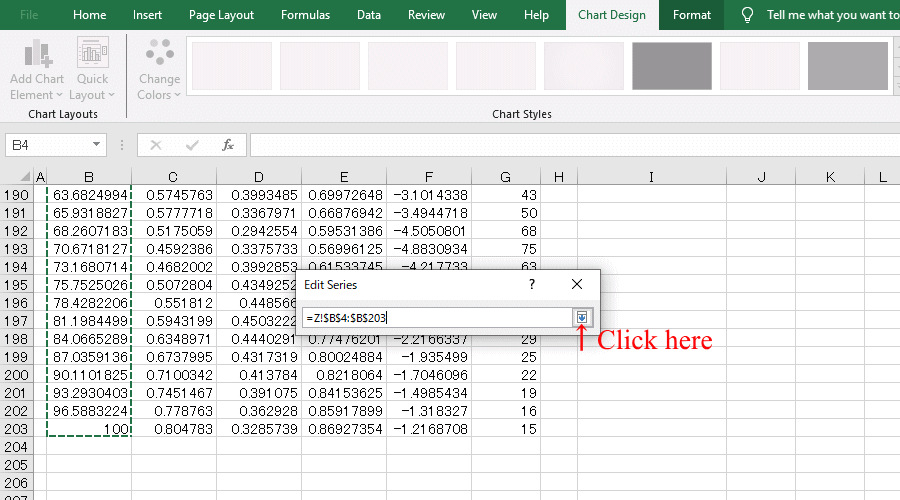
A small window will appear; open the file or sheet containing the converted data,
Select all frequency data and click the arrow.
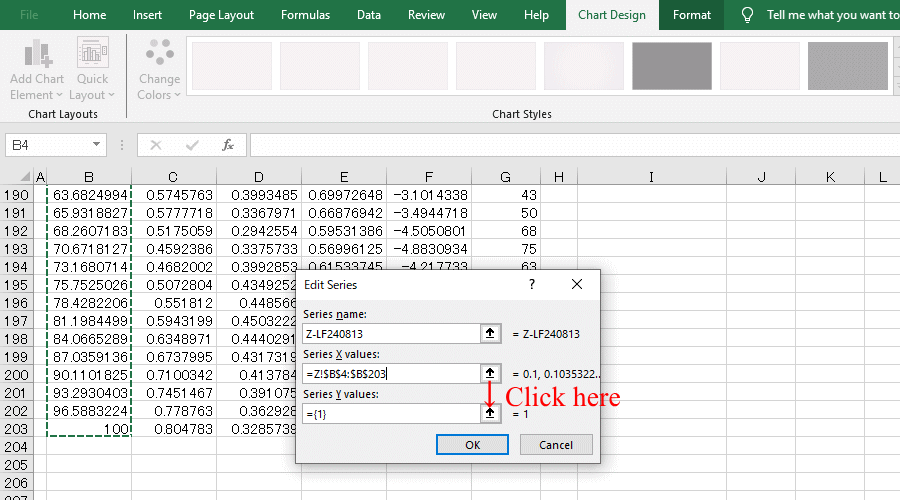
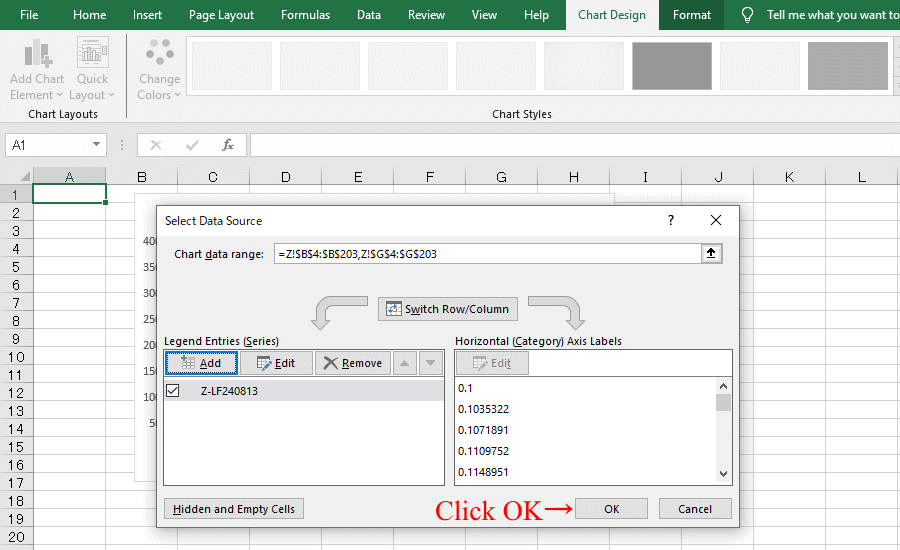
The S21 of a line filter was measured using a Vector Network Analyzer (VNWA3E) DG8SAQ, and the S1p data was imported into Excel. This image explains how to create a frequency response graph from the calculated impedance data. Select the frequency data range for the graph.
The S21 of a line filter was measured using a Vector Network Analyzer (VNWA3E) DG8SAQ, and the S1p data was imported into Excel. This image explains how to create a frequency response graph from the calculated impedance data. This section explains how to set the impedance axis of the graph.
A small window will appear; open the file or sheet containing the converted data,
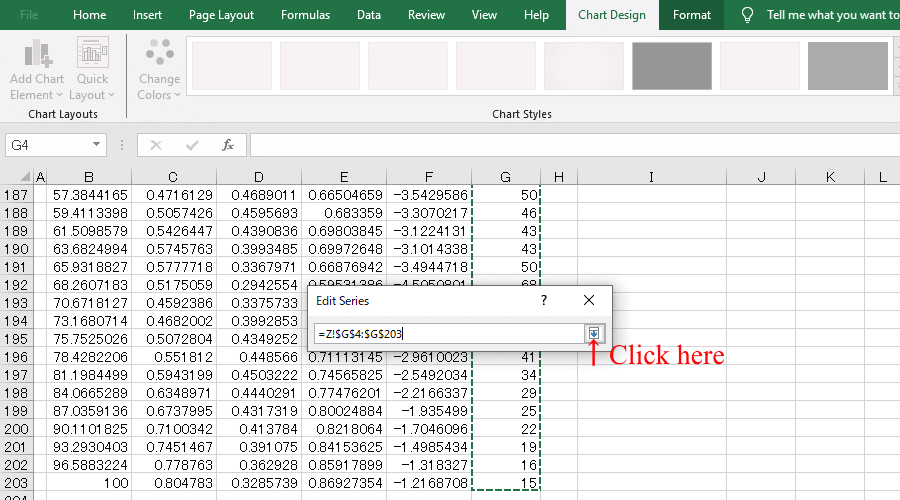
Select all Z data and click the arrow.
The S21 of a line filter was measured using a Vector Network Analyzer (VNWA3E) DG8SAQ, and the S1p data was imported into Excel. This image explains how to create a frequency response graph from the calculated impedance data. Select the range of impedance data for the graph.
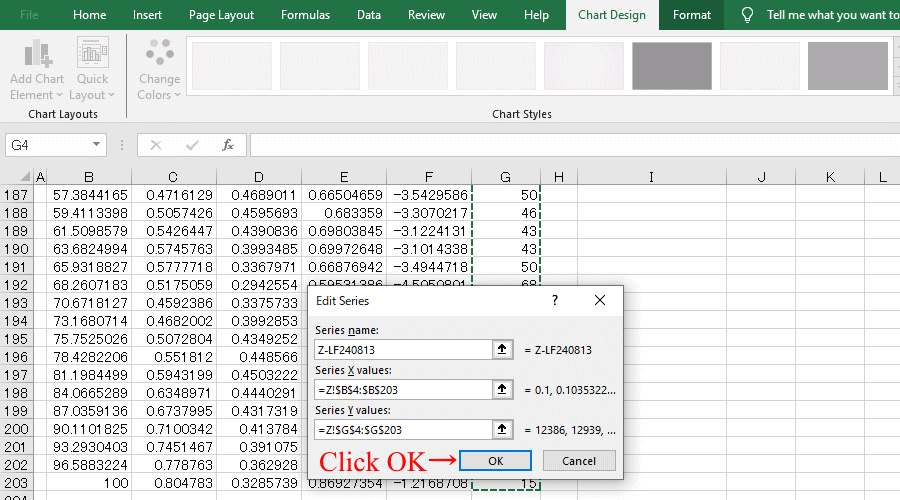
The S21 of a line filter was measured using a Vector Network Analyzer (VNWA3E) DG8SAQ, and the S1p data was imported into Excel. This image explains how to create a frequency response graph from the calculated impedance data. The frequency and impedance data for the graph were set.
The S21 of a line filter was measured using a Vector Network Analyzer (VNWA3E) DG8SAQ, and the S1p data was imported into Excel. This image explains how to create a frequency response graph from the calculated impedance data. All graph data settings are now complete.
Make graphs bigger and easier to edit,
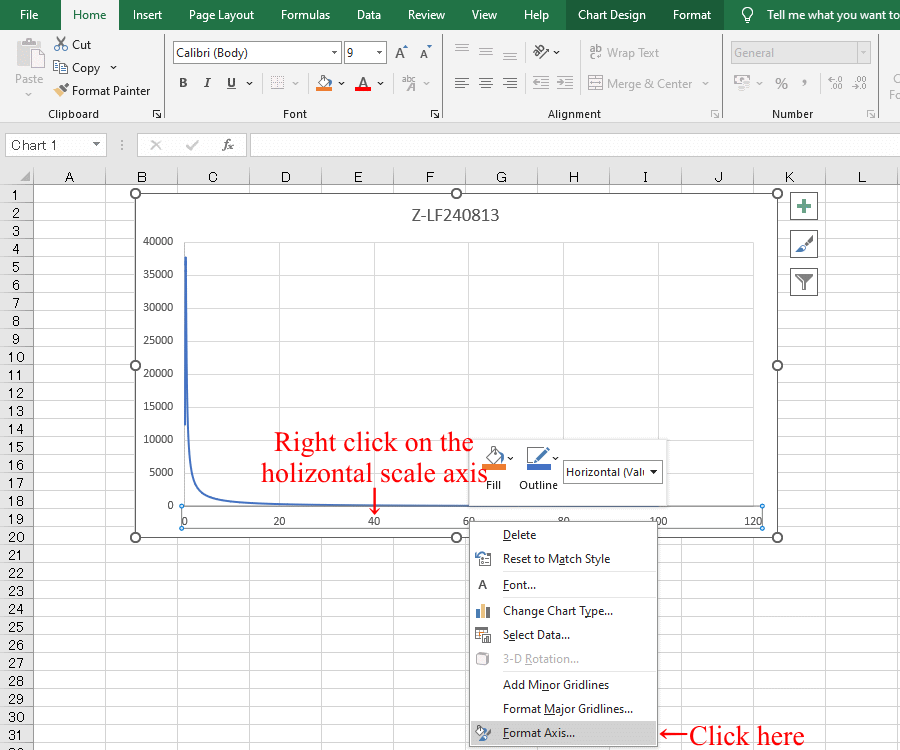
and edit by right-clicking the horizontal scale axis
The S21 of a line filter was measured using a Vector Network Analyzer (VNWA3E) DG8SAQ, and the S1p data was imported into Excel. This image explains how to create a frequency response graph from the calculated impedance data. Right-click on the horizontal axis of the graph to set the scale.
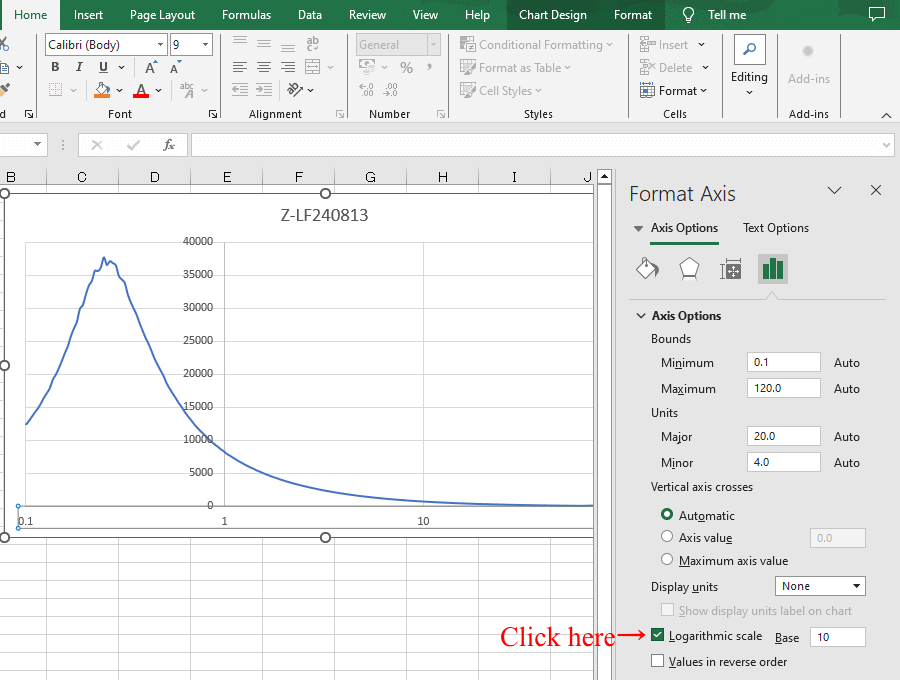
  Convert holizontal scale to logarithmic scale
The S21 of a line filter was measured using a Vector Network Analyzer (VNWA3E) DG8SAQ, and the S1p data was imported into Excel. This image explains how to create a frequency response graph from the calculated impedance data. Change the horizontal axis of the graph to a logarithmic scale.
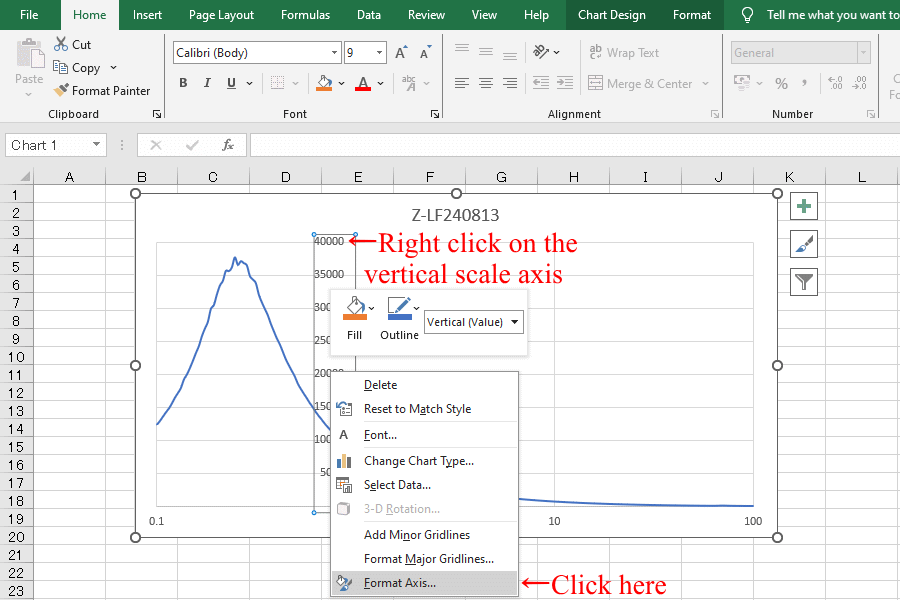
Edit by right-clicking the vertical scale axis
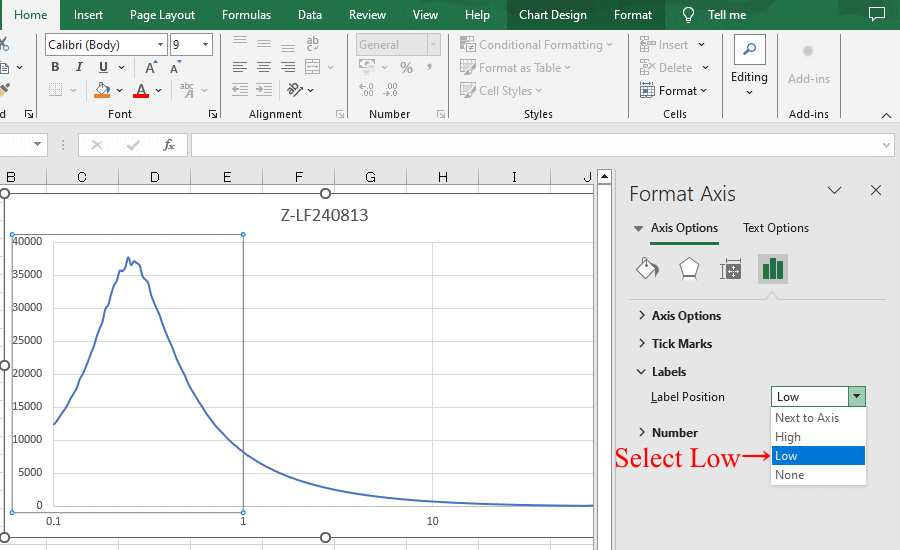
Move the vertical scale position
The S21 of a line filter was measured using a Vector Network Analyzer (VNWA3E) DG8SAQ, and the S1p data was imported into Excel. This image explains how to create a frequency response graph from the calculated impedance data. Edit by right-clicking the vertical scale axis.
The S21 of a line filter was measured using a Vector Network Analyzer (VNWA3E) DG8SAQ, and the S1p data was imported into Excel. This image explains how to create a frequency response graph from the calculated impedance data. Move the vertical scale position to the far left.
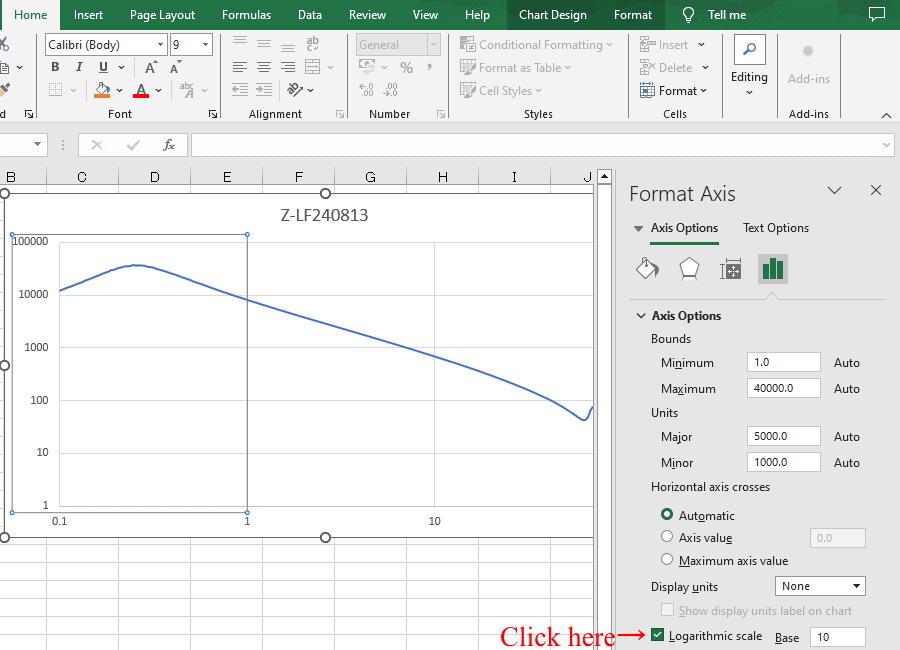
  Convert vertical scale to logarithmic scale
The S21 of a line filter was measured using a Vector Network Analyzer (VNWA3E) DG8SAQ, and the S1p data was imported into Excel. This image explains how to create a frequency response graph from the calculated impedance data. Change the vertical axis of the graph to a logarithmic scale.
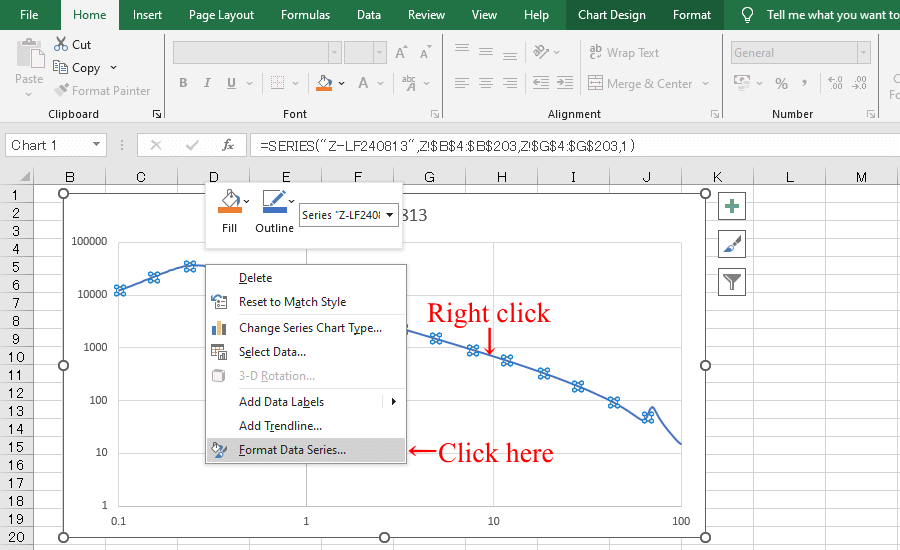
Right-click on impedance data line to edit
The S21 of a line filter was measured using a Vector Network Analyzer (VNWA3E) DG8SAQ, and the S1p data was imported into Excel. This image explains how to create a frequency response graph from the calculated impedance data. Right-click on the impedance data line to edit it.
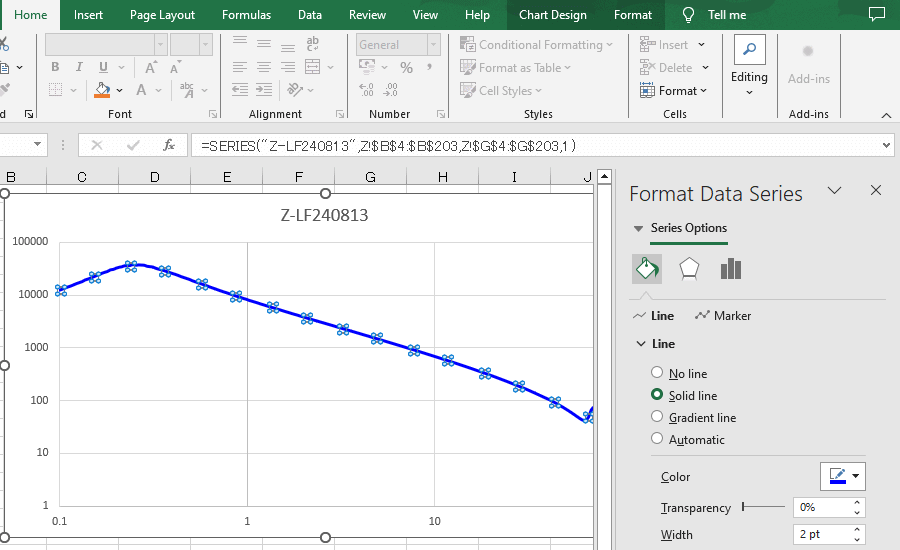
Edit the color and thickness of the graph
 The S21 of a line filter was measured using a Vector Network Analyzer (VNWA3E) DG8SAQ, and the S1p data was imported into Excel. This image explains how to create a frequency response graph from the calculated impedance data. Modify the thickness and color of the impedance data line.
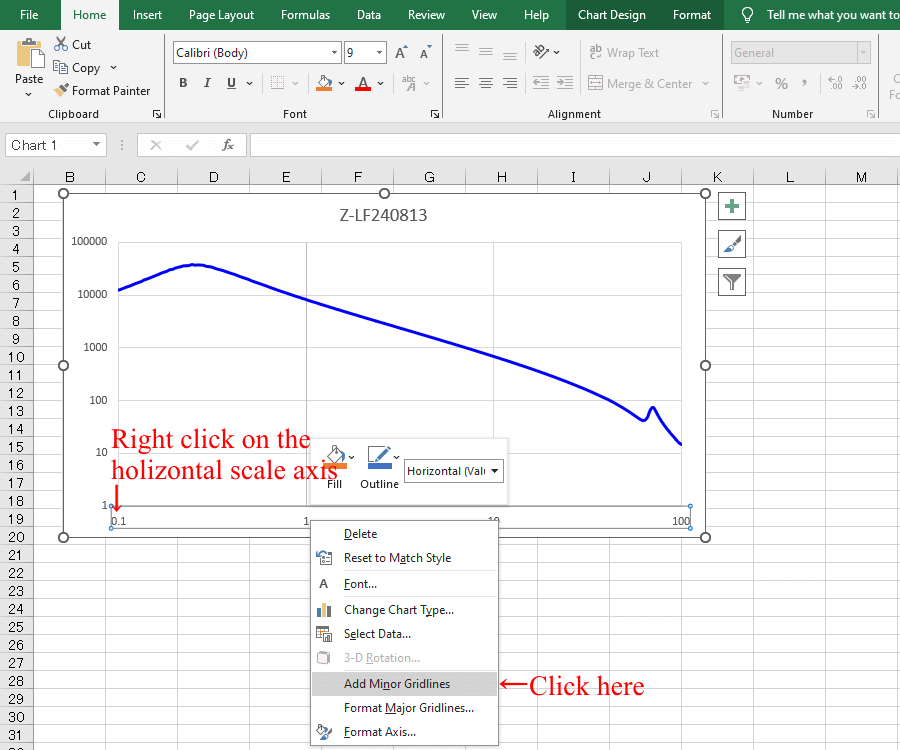
Adds minor tick marks to the horizontal axis.
The S21 of a line filter was measured using a Vector Network Analyzer (VNWA3E) DG8SAQ, and the S1p data was imported into Excel. This image shows how to create a frequency response graph from the calculated impedance data. Add a minor gridline to the frequency axis of the graph.
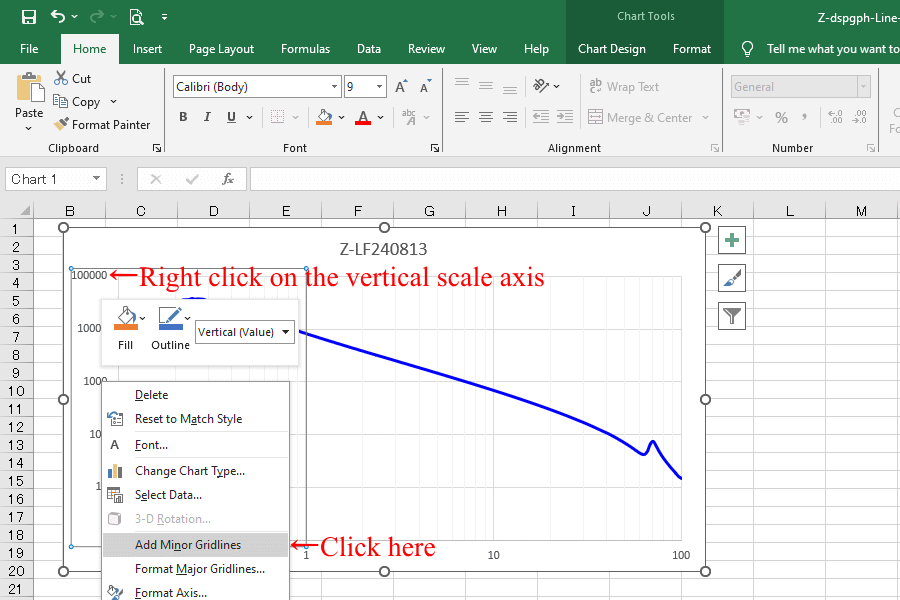
Adds minor tick marks to the vertical axis.
The S21 of a line filter was measured using a Vector Network Analyzer (VNWA3E) DG8SAQ, and the S1p data was imported into Excel. This image shows how to create a frequency response graph from the calculated impedance data. Add a minor gridline to the impedance axis of the graph.
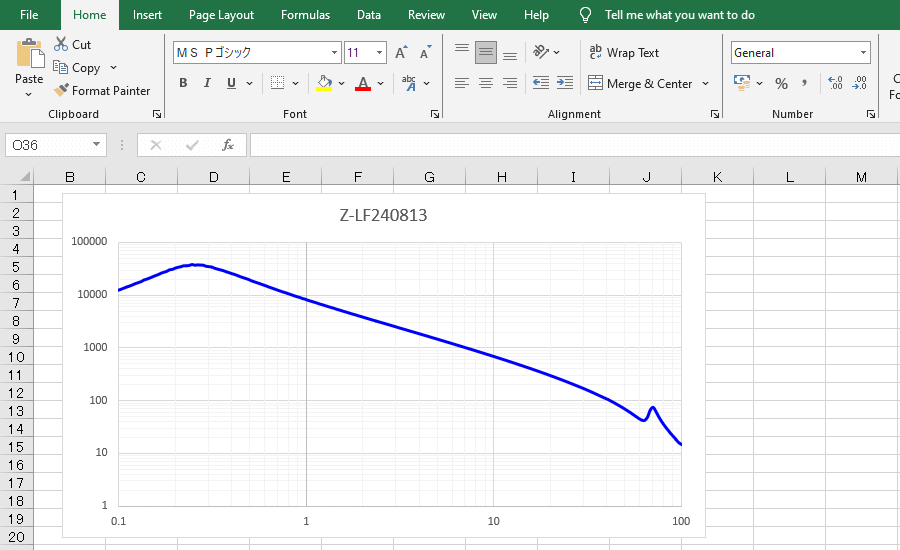
This is an image of an impedance vs. frequency graph created in Excel using data measured from the S21 of a line filter using a vector network analyzer (VNWA3E) DG8SAQ.
How to use Create-dB&Zgraph-from-VNWAs1p calculation sheet.
Click here to download CalculateGraph-dBZ-from-VNWAs1p.xlsx
 

© SMPS Solution